How to install and use Orbitale?
This is the official Orbitale user manual provided by Famousoft. This page contains detailed instructions on how to install the app on your iPad, import guest lists from Excel, design floor plans, use smart conflict detection, and export high-resolution seating charts.
Orbitale User Manual
Statement
Welcome to the Orbitale User Manual! This guide will help you quickly understand and master the ultimate iPad seating chart maker.
Privacy First: Orbitale is designed with absolute respect for your privacy. The app runs 100% locally on your iPad. There are zero ads, zero trackers, and no cloud surveillance. Your event layouts and guest lists belong to you and never leave your device.
All screenshots in this manual are captured on an iPad. Features and interface elements may receive minor updates in future versions, please refer to the latest version of Orbitale for accuracy.
© Famousoft. All rights reserved.
Installation
Orbitale is built exclusively for the iPad to provide an immersive, large-screen layout experience.
Requirements: An iPad running iPadOS 15.0 or later.
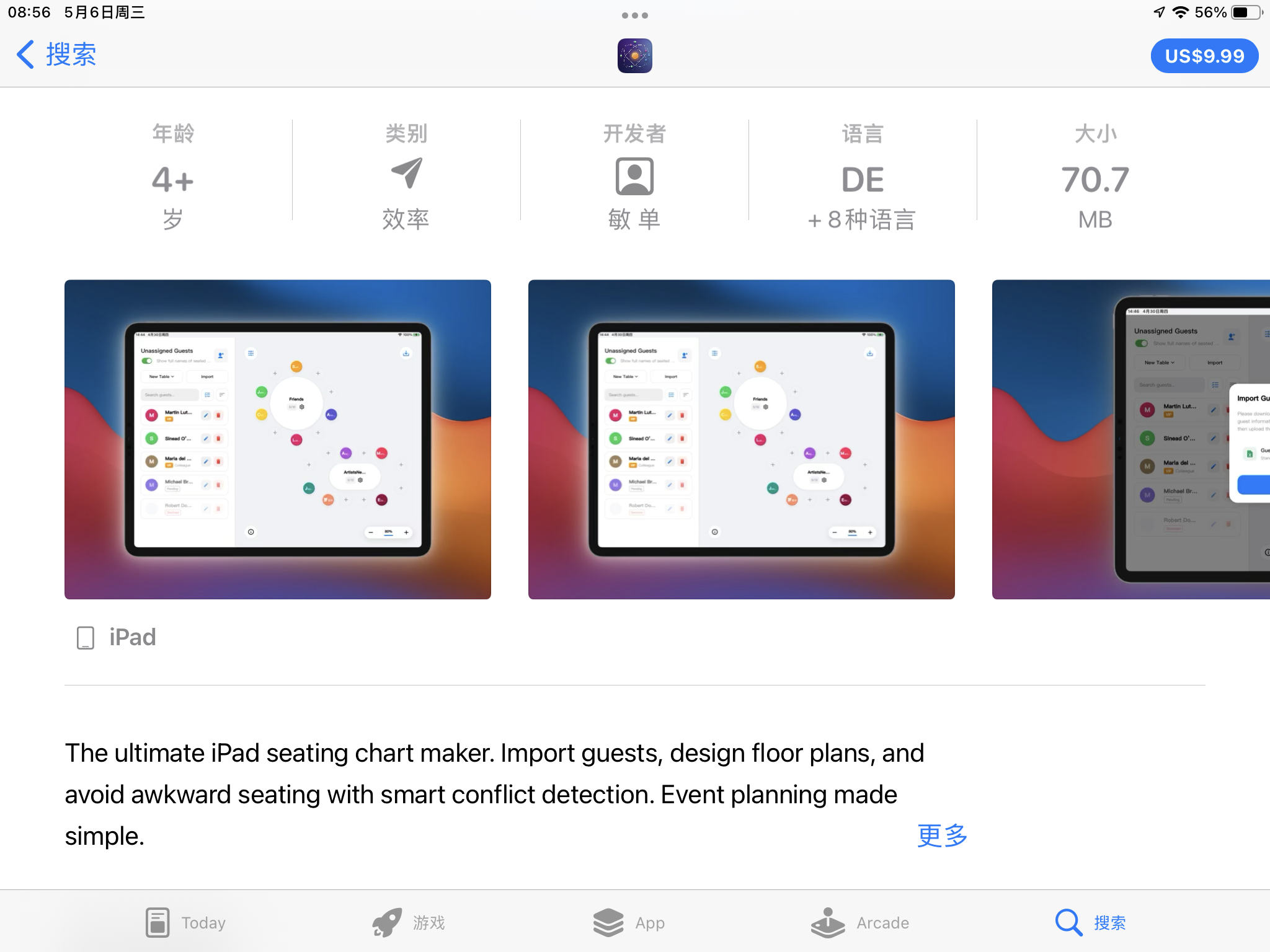
To install, simply open the App Store on your iPad, search for "Orbitale", and tap download. Once installed, tap the Orbitale icon on your home screen to launch the app.
Main Interface & Gestures
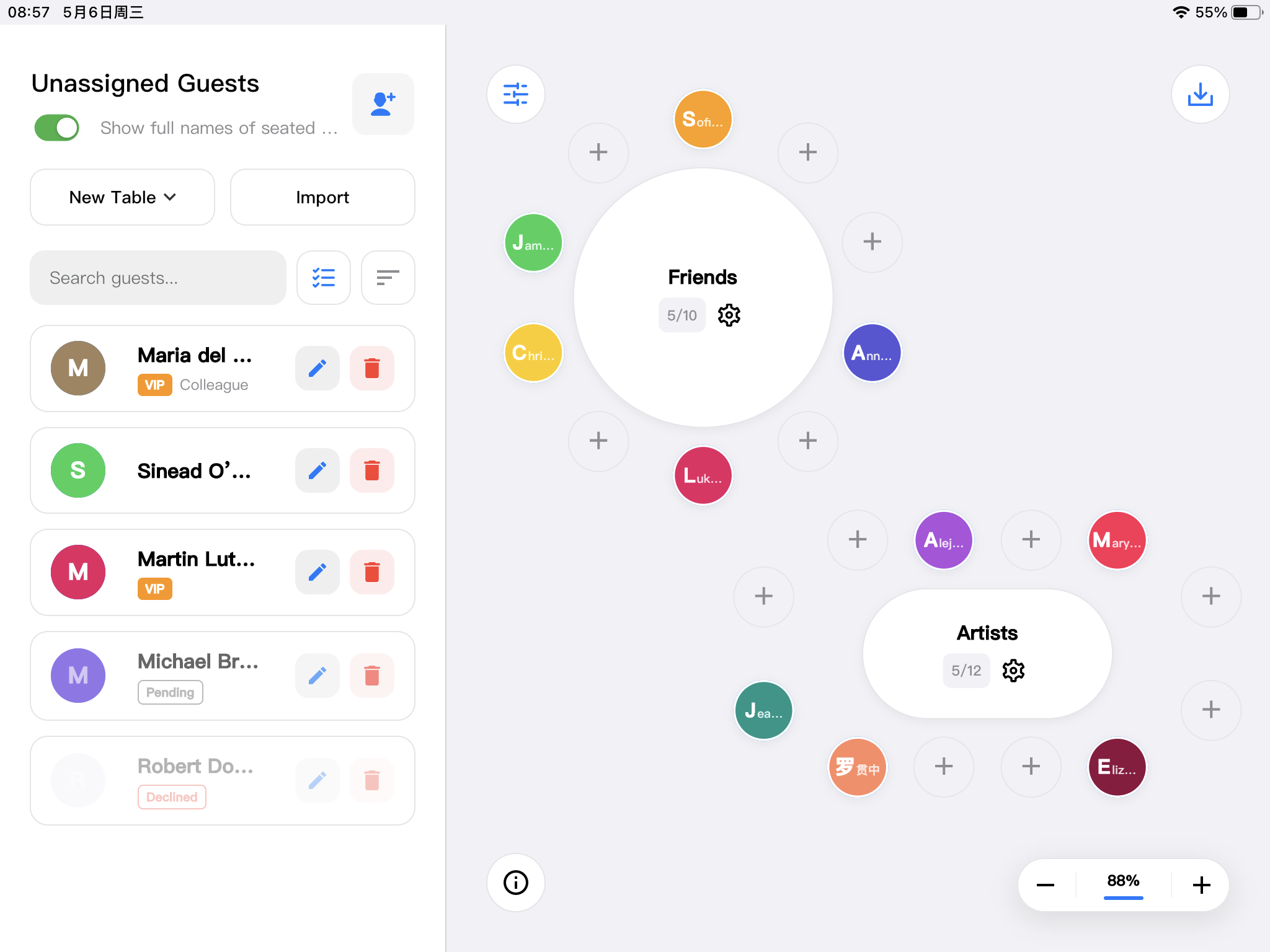
Orbitale features a clean, intuitive workspace divided into two main areas:
- Guest Panel (Left): Manage your guest list, check RSVP statuses, and configure seating rules.
- Design Canvas (Right): Your visual floor plan. This is where you will add tables, arrange the layout, and seat your guests.
Multi-Touch Gestures:
Built specifically for the iPad, the canvas supports fluid multi-touch gestures. Use two fingers to pinch and zoom in or out, and drag with two fingers to pan across massive floor plans effortlessly.
Seamless Guest Import
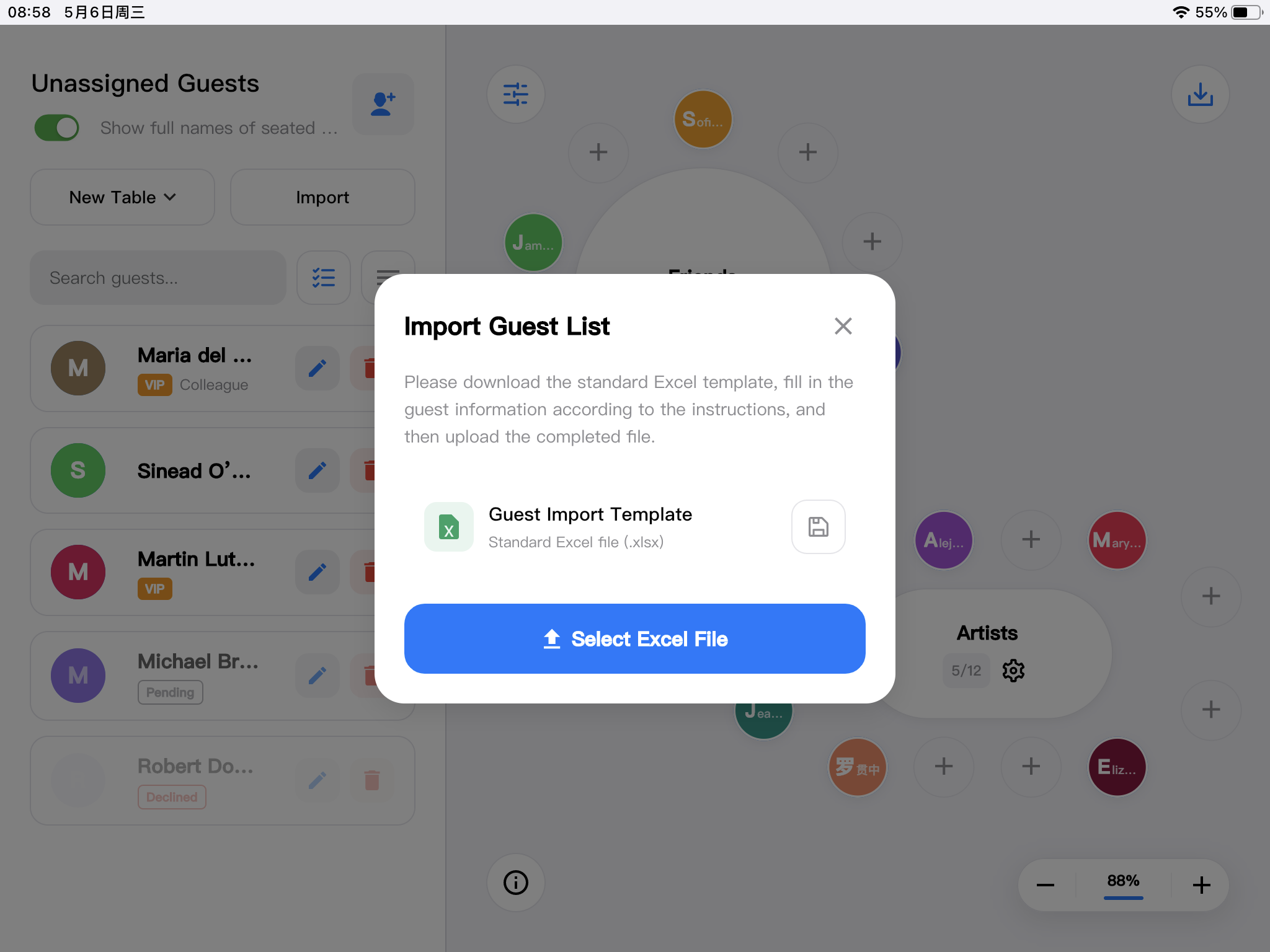
Don't waste time typing hundreds of names manually. Orbitale allows you to import your entire guest list directly from an Excel file.
- Tap the Import button in the guest panel.
- If you don't have the correct format yet, tap Download Template to save the standard `.xlsx` template to your iPad's Files app.
- Fill in your guest details in the Excel file.
- Select the file via the built-in document browser to import all guests instantly.
Note: Orbitale fully supports the iPad's native "Files" app, allowing you to open documents in place securely.
Floor Plan Design
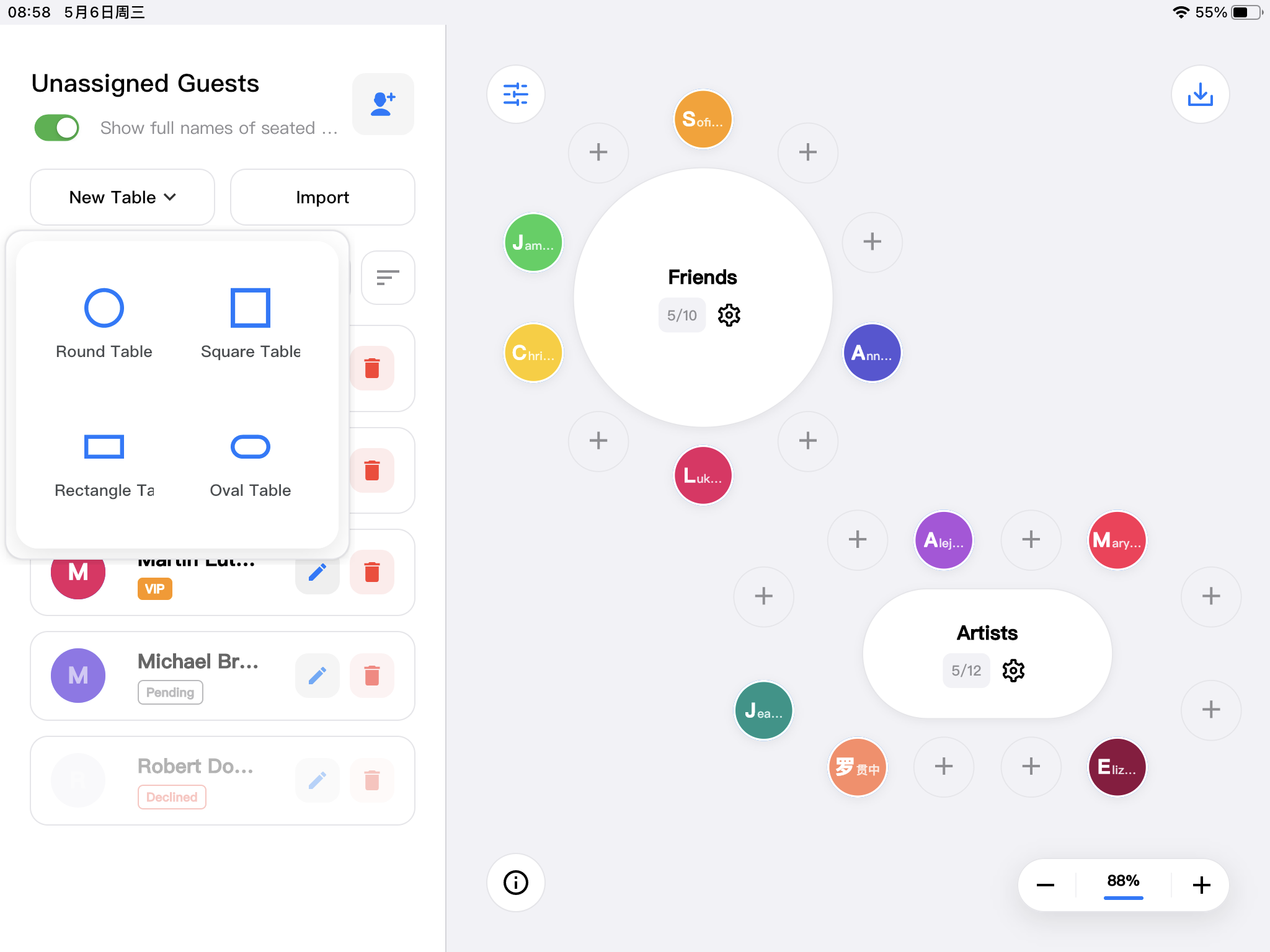
Recreate your venue's layout with precision.
Tap the Add Table button to drop new tables onto the canvas. You can choose from different shapes (Round, Square, Rectangular) and customize the number of seats per table.
Simply drag and drop tables to arrange them exactly as they will appear in real life. You can freely rotate and adjust the spacing to fit your venue's requirements.
Assigning Seats
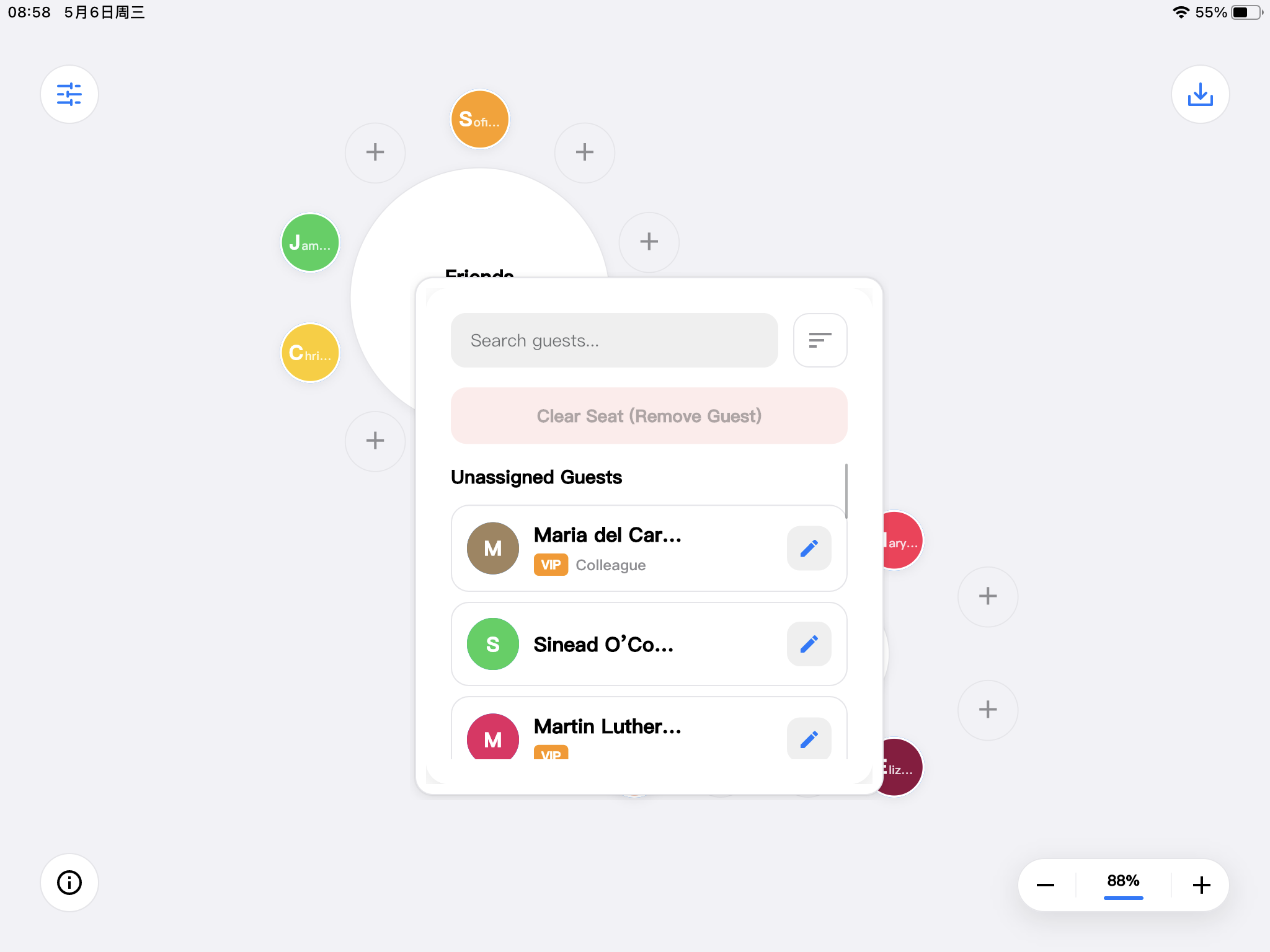
Seating guests is precise and straightforward.
To assign a seat, simply tap the "+" (Plus) icon on any empty seat around a table. This will bring up a guest selection dialog. Choose the desired guest from your list, and Orbitale will instantly place them in that seat and update their seating status automatically.
Smart Conflict Detection
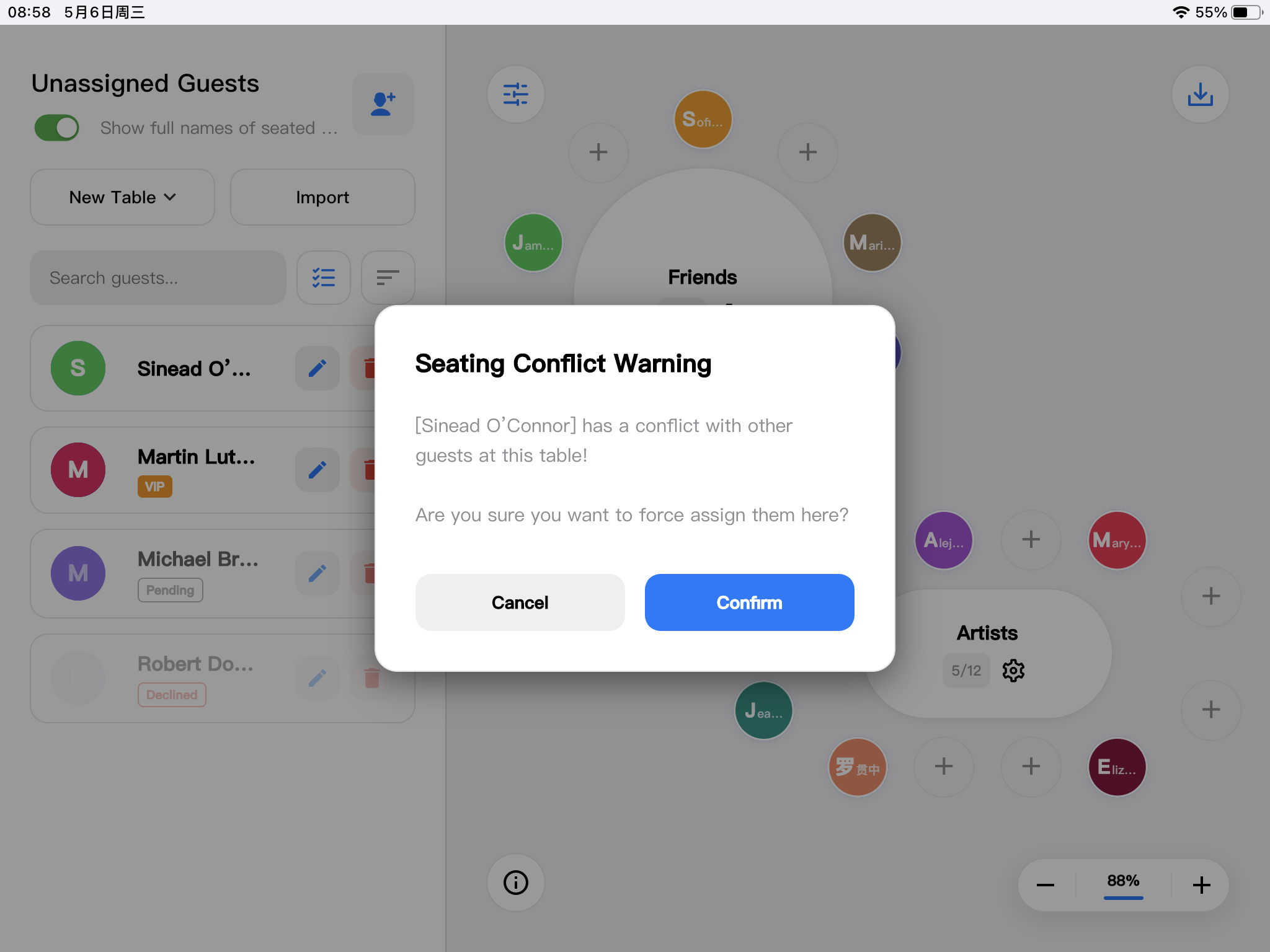
Avoid awkward seating arrangements with Orbitale's built-in conflict detection engine.
In the guest settings, you can define relationship rules (e.g., tagging guests who absolutely should not sit together). If you accidentally place conflicting guests at the same table, Orbitale will instantly flag the table with a visual warning, helping you prevent drama before the event begins.
Visual Guest Management
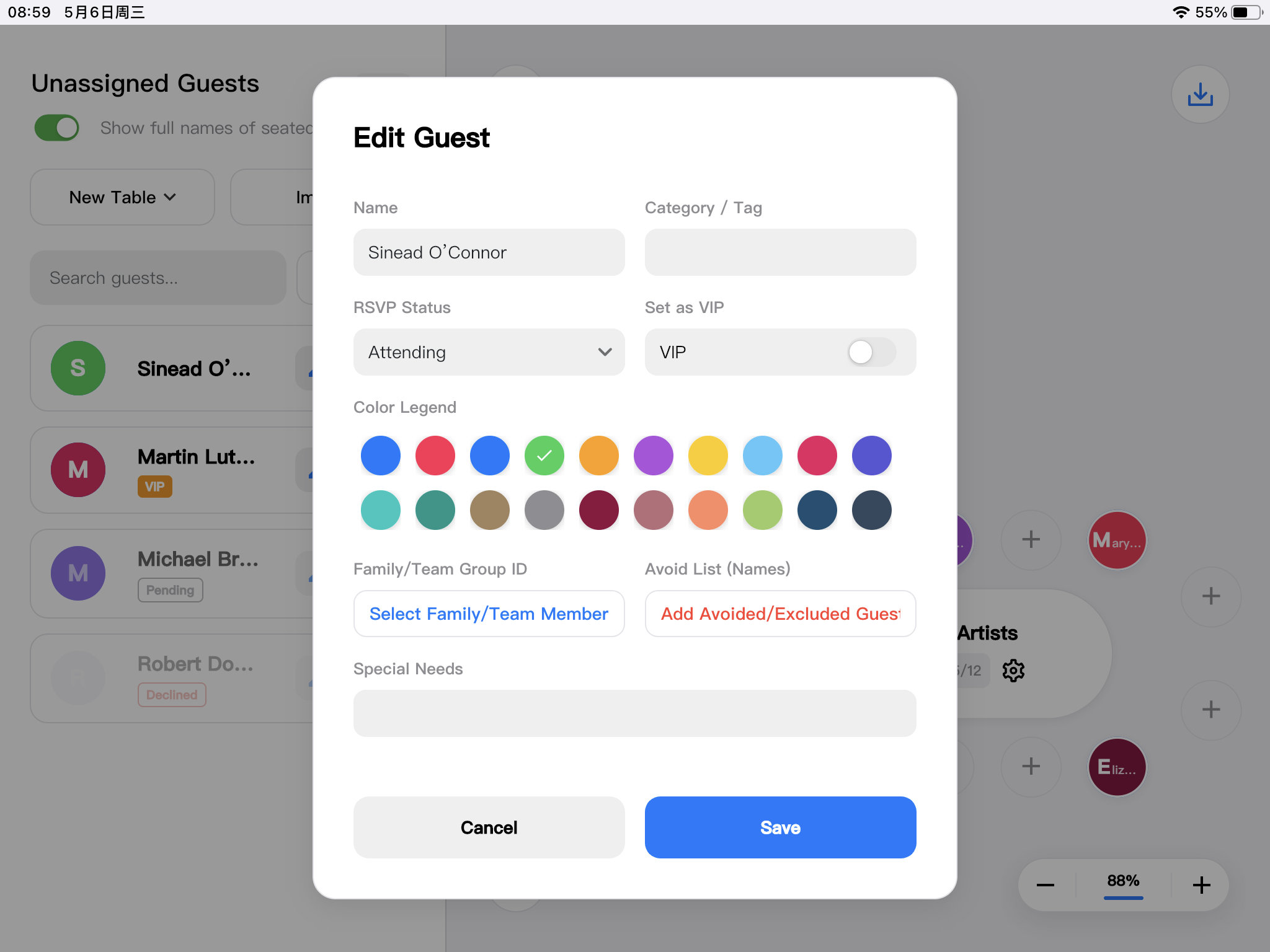
Keep track of every detail at a glance:
- RSVP Tracking: Mark guests as Attending, Pending, or Declined.
- Custom Tags: Use tags to mark VIPs, track dietary restrictions (e.g., Vegan, Gluten-Free), or group families together.
- Filtering: Use the filter options to instantly find unseated guests or locate specific individuals in a crowded layout.
Export & Share
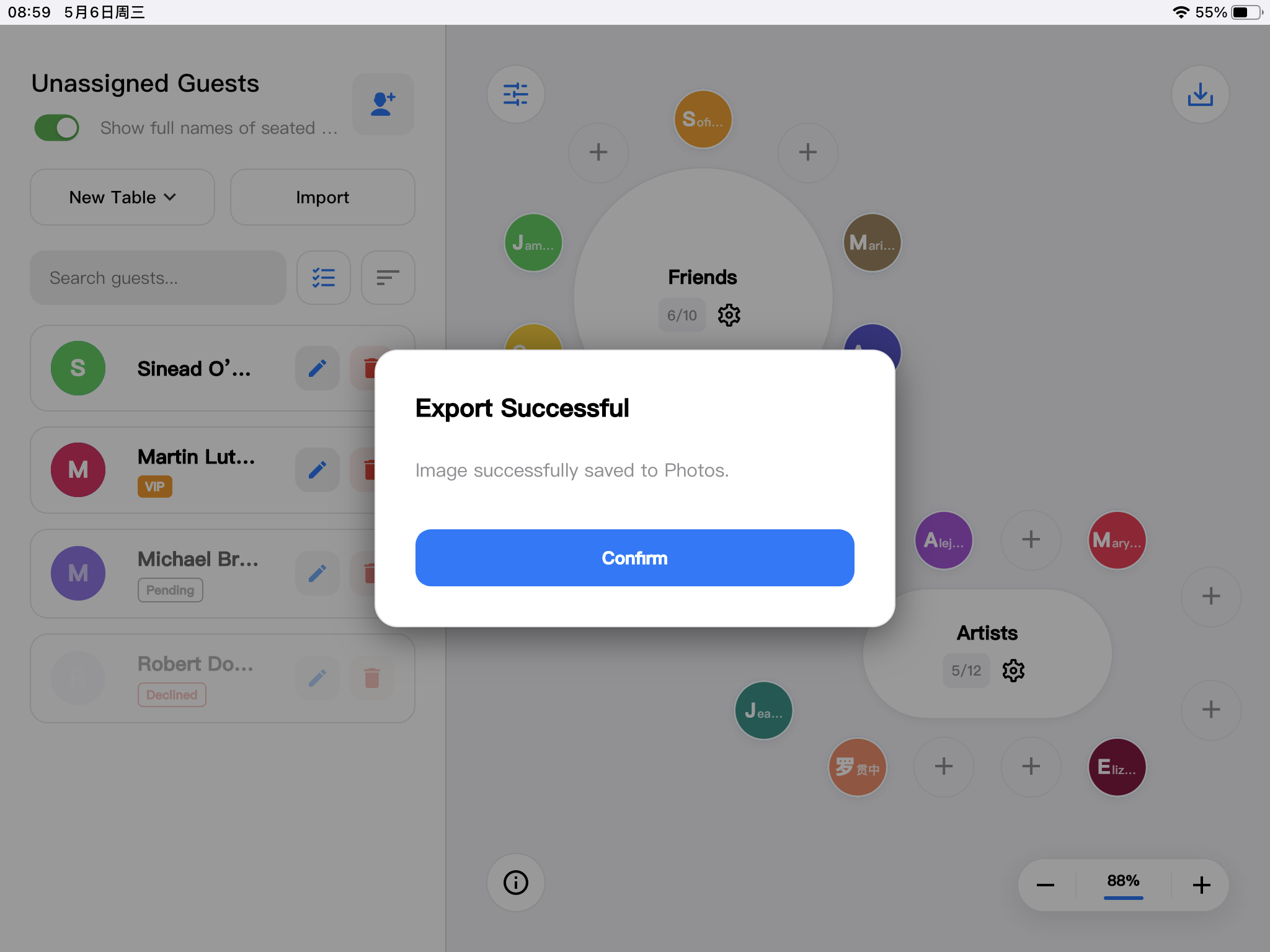
Once your masterpiece is complete, you can easily share it with caterers, event coordinators, or the venue staff.
Tap the Export button to generate a stunning, high-resolution image of your entire seating chart. Orbitale will save this image directly to your iPad's Photo Library.
Note: Orbitale requires permission to access your Photo Library strictly for the purpose of saving these high-resolution charts. We do not read or upload your personal photos.
Appearance & Localization
Orbitale supports multiple languages including English, Chinese (Simplified & Traditional), Japanese, Korean, Spanish, French, Portuguese, and German. The app will automatically adapt to your iPad's system language.
You can also switch between Light Mode and Dark Mode in your iPad's Control Center, and Orbitale will seamlessly update its interface to match your preference.